Home
About
Search
🌐
English Română
  • 30 years of PHP

    Citește postarea în română

    Dec 22, 2025 PHP
    Share on:

    Intro

    Around 30 years ago, Rasmus Lerdorf was trying to build a templating engine to allow for easier website building in C. Its purpose was to generate with more ease the HTML pages on the server side. The name of the engine was PHP, Personal Home Page.

    Considering the context back then, with the web being in its infancy, but showing a lot of exciting potential, the need for a framework to build websites easier is obvious.

    A few years later, PHP got a template engine (Smarty). Yes, the template engine got a template engine.

    Fast forward 10 years, a new object model was created in order to fix previous models.

    Even the name changed, PHP was now "PHP: Hypertext Preprocessor", a recursive acronym.

    I think it’s safe to say that the original plan changed quite a bit down the line.

    My story with PHP

    When I was in high school I built my first website for a school project - it was the periodic table of elements. I was very excited about building things that could be part of the Internet! I wanted to make things more dynamic. Before that point I was just copy/pasting JS code from various websites to make things seem more dynamic. Back then, there weren't a lot of resources to learn JavaScript from.

    My story with PHP started in my first year of college.

    A friend who was a “Webmaster” suggested that I should try PHP and MySQL as they are easy to learn.

    I wish I could say that I got a job right away, but things in the early 2000’s weren’t that great, there weren’t many jobs for junior programmers.

    Before I landed my first job, I was at an interview at a company and told them I was excited about PHP, to which the manager laughed and told me I should learn a real programming language, like FoxPro! At that time, PHP was very much regarded as a toy language.

    Not long after, I finally landed my first job as a programmer. I was so excited and terrified of how much I didn’t know.

    It turns out that PHP was a great option at the time, there were a lot of career opportunities, it was its golden age. Frameworks and platforms were popping all around. Smarty, CakePHP, Symfony, Wordpress, Magento and many many others.

    I had the opportunity to work for all kinds of clients, some barely had any customers, others had millions of users.

    It was a cool and trendy language used by many companies, including Yahoo! and Facebook. Even Google was using it for the merchandise shop.

    I’ve used it on and off for 16 years and I would enjoying using it again if the right opportunity appears.

    The downfall

    On one not so special day in 2017, while working as a Magento 2 developer, someone told me that it wasn’t as easy as it used to be to find programmers, young programmers don’t consider PHP as cool. This was a shock to me as the language was still very exciting, there were plenty of jobs and new and interesting features appearing all the time.

    But yes, that was the beginning of the downfall of PHP, for reasons that are not very clear to me.

    Languages like Node.js began to really take off, that became the “cool” kid on the block. People were complaining about PHP’s dynamic nature and using Node.js as an alternative.

    Last year someone was joking “at least we are not doing PHP”, I wasn’t amused, we are doing Erlang. If you wonder why there are still more PHP projects then Erlang, you should start learning Erlang, I'm sure you’re not going to ask that question again when you’ll know it well enough.

    This year at FOSDEM, I had a discussion with some other dev about PHP. He was joking about how bad it was, I asked him what made it so bad, and it turns out that he never worked with it, but he had some very good examples of major issues, most of which were fixed with PHP 5.3, which was released in 2009, 16 years ago.

    Speaking of FOSDEM, the first time I went to the conference, more than a decade ago, PHP had an amphitheater, a huge place and lots of people. After a few years it moved to a big room, still plenty of space and plenty of people. Last time PHP had a room there was in 2019, a small room for only about 50 people.

    While PHP is far from extinct, it’s a shame that it’s losing its popularity after it has become so advanced. It’s a good example of technology that did nothing wrong, yet started to be phased out of use.

    Epilogue

    PHP has risen, taken over the world, but now, it seems like it has lost its shine. The market is changing, other languages have appeared, with new frameworks and with different approaches to programming.

    While many people complain about its limitations, it’s been used in systems from small blogs to tech giants, from small shopping carts to mission critical infrastructure.

    It may shine again, or it may just become a language in maintenance. Whatever the future will bring, I want to wish it a happy birthday, and thank you for the ride! It's been a great journey!

  • HTTPS certificate monitoring in Home Assistant

    Feb 22, 2025 homeassistant
    Share on:

    Intro

    Recently Let's Encrypt has announced that it will drop support for Expiration Notification Emails. When the announcement was made they even suggested a couple of services that provide this functionality, but where is the fun in that?

    I decided that I will use a local service for that and since I use Home Assistant for a lot of other stuff, I decided that I will integrate this in my HA dashboard. Using HA also provides notifications out of the box, which I already use in my Home Assistant Companion App

    Let the fun begin!

    Finding the certificate information

    I decided that it would be nice to have a small utility to give me the number of days until the certificate expire.

    Fortunately it turns out that it is not that complicated to do it in Go. I've made a script to do that, you can find it here: https://github.com/claudiu-persoiu/domain-expire.

    All the interesting logic it is:

    1    conn, err := tls.Dial("tcp", domain+":443", conf)
    2    ....
    3    cert := conn.ConnectionState().PeerCertificates[0]
    4
    5    diff := cert.NotAfter.Sub(time.Now())
    

    We are just retrieving the chain of certificates, take the first one and subtract the time.

    Feel free to download the appropriate executable for your OS from here: https://github.com/claudiu-persoiu/domain-expire/releases and rename it to domain. I will be using that name for the executable for the rest of the tutorial.

    Home Assistant setup

    To add it in Home Assistant we need to run the command above from time to time.

    To make sure HA has access to the executable it should be copied to the /config folder, where the other HA configs are stored. Make sure it is moved and it can be run in that folder using the command line like so:

    $ ./domain google.com

    The return value should be an integer representing the number of days before the certificate expires.

    Now that we know it's working it's time to add the sensor to HA, edit configuration.yaml and add:

    1command_line:
    2   - sensor:
    3         unique_id: days_google_com
    4         name: Days Google.com
    5         command: "/config/domain google.com"
    6         unit_of_measurement: "days"
    7         scan_interval: 21600
    

    If you don't want to monitor Google, feel free to change that to your domain.

    The scan interval is twice a day, I don't really need that to be any more often as this certificates don't change very often.

    Restart HA. At this point the entity should be available in Home Assistant!

    Home Assistant notification

    Maybe you don't look that often at the HA dashboard, or don't look that often at this entity in particular and it doesn't really change that much over time, a notification would be very useful not to miss it!

    I will be using the HA notifications as they are very convenient if you already use the Home Assistant Companion App.

    In your /config/automations folder create a new file, called domain.yaml and add the code below:

     1- id: domain_alert
     2  alias: Domain Google.com
     3  trigger:
     4  - trigger: time
     5    at: "09:30:00"
     6  conditions: "{{ states('sensor.days_google_com') | float < 10 }}"
     7  action:
     8  - data:
     9      title: 'Update the certificate!'
    10      message: 'Remember to update the certificate for Google.com!'
    11      data:
    12        sticky: 'true'
    13        clickAction: "/lovelace/default_view"
    14    service: notify.ALL_DEVICES
    

    Again, if you don't work for Google you may need to change the sensor.days_google_com.

    I've done some assumptions, the script will only run at 9:30AM, since the script doesn't change that often it doesn't make a lot of sense to do it very often, you may need to modify that.

    Also the notification is send to all devices, if you have your spouse uses HA, maybe you don't want to do that, just keep that in mind.

    Conclusion

    In just a few easy (hopefully) steps you can now monitor your ssl certificates using your on HA instance, instead of using some other free service...

  • Adding a slider to Tasmota using BerryScript

    Citește postarea în română

    Nov 10, 2024 Tasmota BerryScript homeassistant
    Share on:

    Intro

    I recently bought a fireplace that's also heating water from some radiators. To achieve this it requires a recirculating pump.

    The pump should start when the water is reaching a certain temperature and stops when the temperature is dropping under a threshold. Nothing very complex so far, the system used in fact a very basic thermostat and was working adequately:
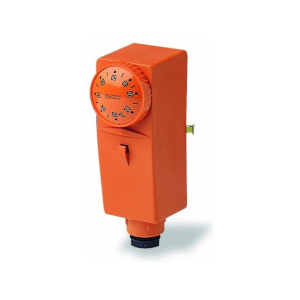
    Basic bracelet thermostat

    There were some shortcomings, like it wasn’t making very good contact with the heated pipe and had to start a bit early. This caused the stopping temperature to also be a bit late, so I wanted to be able to change those temperatures with ease.

    Another requirement was for the device to be independent. If the device disconnects from the network for some reason, or Home Assistant is not working, it should start on its own, this is to prevent the water from boiling. Let’s just say I don’t want things blowing up just because they look cool. Also, it would be nice to stop on its own, so it doesn’t recirculate the water for no reason.

    Sonoff TH Elite with a temperature probe seems to be the perfect tool for the job, and also has a very nice display to see the water temperature at a glance. Please note that, unfortunately for me, this wasn't sponsored.
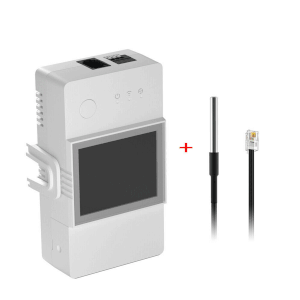
    Sonoff TH Elite

    Everything was perfect, except for one thing, I couldn't find a way to have a nice slider to control the temperature. I could hardcode it since it would probably never ever change, but what’s the fun in that?

    And so my journey begins…

    Get to coding

    Device

    I’m not going to spend any time talking about preparing the device, there are plenty of tutorials about flashing Tasmota. The code should work with any device running Tasmota, in fact the code for this tutorial has been written using just a generic Esp32 board I already owned and wasn’t actively using for anything else.

    Berry script

    If you got to this part, you probably didn’t burn your esp controller or your house. Congratulations, that was the hardest part!

    All the magic comes from Berry Script, a scripting language that allows extending the functionalities of Tasmota.

    Unfortunately, the documentation is not very clear and there's only one example at this point. There is a full example, but it is very complex and very hard to follow.

    But let’s get to work. Firstly, we need to create the file that executes the script. To do that, connect to the device’s UI using the IP and go to Tools > Manage File system and click on Create and Edit new file.

    Enter the file name on top with the name autoexec.be, remove the file content and click Save. From this point on we will be editing this file. When editing is involved, we will refer to this file.

    To make sure the file is getting compiled, from the Main Menu, go to Tools > Berry Scripting console.

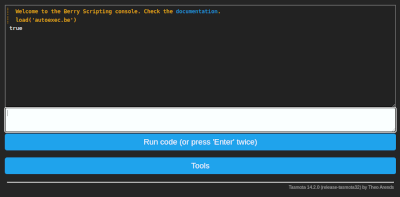
    Enter load('autoexec.be') and click Run code (or press ‘Enter’ twice). You should see the output true.

    Run code

    Setting the component

    Edit autoexec.be and enter the following code for a basic component:

     1import webserver
     2
     3class MySlider
     4  def web_add_main_button()
     5    webserver.content_send("<div style='padding:0'><h3>Set pump temperature</h3></div>")
     6  end
     7end
     8
     9
    10d1 = MySlider()
    11tasmota.add_driver(d1)
    

    Reload the UI again by using the load('autoexec.be') command from above.

    Now, if we access the main page of the device we should see the text Set pump temperature.
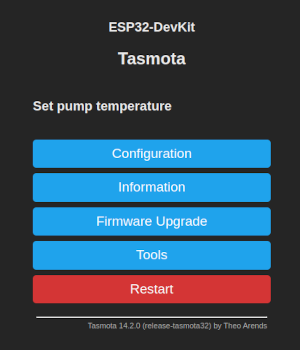
    Set pump temperature

    I guess the first secret is out, we just need to render some HTML to make this work.

    We need one more thing, we need to save the value we set with the slider. Fortunately, that is very easy using the persist library. We can set the default value when the component it is loading:

    1  def init()
    2    if (!persist.m_start_temp)
    3        persist.m_start_temp = 55
    4    end
    5
    6    if (!persist.m_stop_temp)
    7      persist.m_stop_temp = 50
    8    end
    9  end
    

    We now have a default start temperature and a default stop temperature.

    Since I need a start and a stop, I will make a method that renders either one or the other and send that to the output using webserver.content_send, so the method web_add_main_button() will become:

    1  def web_add_main_button()
    2    webserver.content_send("<div style='padding:0'><h3>Set pump temperature</h3></div>")
    3    webserver.content_send(
    4      self._render_button(persist.m_start_temp, "Start", "start")
    5    )
    6    webserver.content_send(
    7      self._render_button(persist.m_stop_temp, "Stop", "stop")
    8    )
    9  end
    

    We send the current value, the label for the slider and an id. The id will be later used to identify the element that has changed.

    The rendering method is:

     1  def _render_button(persist_item, label, id)
     2    return "<div style='padding:0'>"+
     3        "<table style='width: 100%'>"+
     4          "<tr>"+
     5            "<td><label>"..label.." </label></td>"+
     6            "<td align=\"right\"><span id='lab_"..id.."'>"..persist_item.."</span>°C</td>"+
     7          "</tr>"+
     8        "</table>"+
     9        "<input type=\"range\" min=\"20\" max=\"70\" step=\"1\" "+
    10          "onchange='la(\"&m_"..id.."_temp=\"+this.value)' "+
    11          "oninput=\"document.getElementById('lab_"..id.."').innerHTML=this.value\" "+
    12          "value='"..persist_item.."'/>"+
    13      "</div>"
    14  end
    

    oninput is used to change the value of the level on the screen. This is because the default html slider doesn't show the actual value that is selected and we will not know what was selected until the user stops, which would make for a bad UX.

    onchange is to change the actual value, this is a bit of Tasmota magic.

    Now that we rendered everything, we need a way to save the updated value. This is done using the web_sensor method:

     1  def web_sensor()
     2
     3    if webserver.has_arg("m_start_temp")
     4      var m_start_temp = int(webserver.arg("m_start_temp"))
     5      persist.m_start_temp = m_start_temp
     6      persist.save()
     7    end
     8
     9    if webserver.has_arg("m_stop_temp")
    10      var m_stop_temp = int(webserver.arg("m_stop_temp"))
    11      persist.m_stop_temp = m_stop_temp
    12      persist.save()
    13    end
    14
    15  end
    

    At this point, if we put everything together, it should do the job. There is however something that I want: we don't know the selected value in HA (if using it), so it would be nice to display it somewhere, just in case we forgot what was selected. To expose data we need to implement json_append:

    1  def json_append()
    2    var start = int(persist.m_start_temp)
    3    var stop = int(persist.m_stop_temp)
    4    var msg = string.format(",\"Pump\":{\"start\":%i,\"stop\":%i}", start, stop)
    5    tasmota.response_append(msg)
    6  end
    

    At this point we completed the example! Let's see it:

     1import webserver
     2import persist
     3import string
     4
     5class MySlider
     6
     7  def init()
     8    if (!persist.m_start_temp)
     9        persist.m_start_temp = 55
    10    end
    11
    12    if (!persist.m_stop_temp)
    13      persist.m_stop_temp = 50
    14    end
    15
    16  end
    17 
    18  def web_add_main_button()
    19    webserver.content_send("<div style='padding:0'><h3>Set pump temperature</h3></div>")
    20    webserver.content_send(
    21      self._render_button(persist.m_start_temp, "Start", "start")
    22    )
    23    webserver.content_send(
    24      self._render_button(persist.m_stop_temp, "Stop", "stop")
    25    )
    26  end
    27
    28  def _render_button(persist_item, label, id)
    29    return "<div style='padding:0'>"+
    30        "<table style='width: 100%'>"+
    31          "<tr>"+
    32            "<td><label>"..label.." </label></td>"+
    33            "<td align=\"right\"><span id='lab_"..id.."'>"..persist_item.."</span>°C</td>"+
    34          "</tr>"+
    35        "</table>"+
    36        "<input type=\"range\" min=\"20\" max=\"70\" step=\"1\" "+
    37          "onchange='la(\"&m_"..id.."_temp=\"+this.value)' "+
    38          "oninput=\"document.getElementById('lab_"..id.."').innerHTML=this.value\" "+
    39          "value='"..persist_item.."'/>"+
    40      "</div>"
    41  end
    42
    43 
    44  def web_sensor()
    45
    46    if webserver.has_arg("m_start_temp")
    47      var m_start_temp = int(webserver.arg("m_start_temp"))
    48      persist.m_start_temp = m_start_temp
    49      persist.save()
    50    end
    51
    52    if webserver.has_arg("m_stop_temp")
    53      var m_stop_temp = int(webserver.arg("m_stop_temp"))
    54      persist.m_stop_temp = m_stop_temp
    55      persist.save()
    56    end
    57
    58  end
    59
    60  def json_append()
    61    var start = int(persist.m_start_temp)
    62    var stop = int(persist.m_stop_temp)
    63    var msg = string.format(",\"Pump\":{\"start\":%i,\"stop\":%i}", start, stop)
    64    tasmota.response_append(msg)
    65  end
    66end
    67
    68slider = MySlider()
    69tasmota.add_driver(slider)
    

    It's a fair bit of code, but it's hopefully not that hard to understand.

    Setting the automation

    Now that we have the data, we can set the actual automation. The rules are very simple:

    • When the start temperature is reached, start the pump.
    • When the temperature is below the set temperature, simply stop the pump.
     1def heater_control(value) 
     2
     3  if value >= persist.m_start_temp
     4	  tasmota.set_power(0, true)
     5  end
     6  
     7  if value < persist.m_stop_temp
     8	  tasmota.set_power(0, false)
     9  end
    10end 
    11# this is a specifc rule for Sonoff TH Elite temperature probe
    12tasmota.add_rule("DS18B20#Temperature", heater_control)
    

    If you are using a different device, it may have a different name and the string "DS18B20#Temperature" may need to be changed.

    The end result on the Sonoff TH Elite device should look like below:
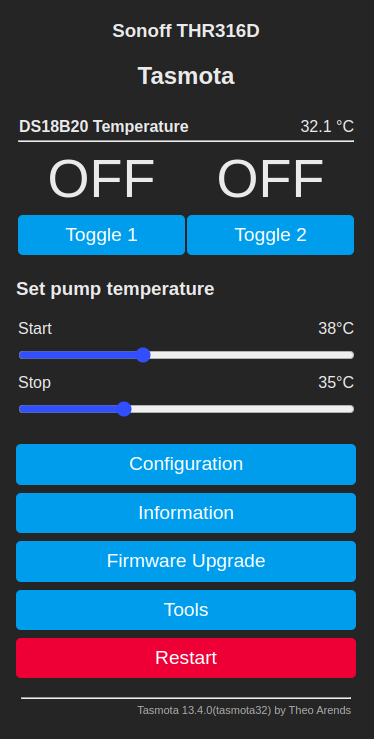
    Tasmota Sonoff TH Elite

    Conclusion

    Using some simple coding, you can make a not so interesting smart device into something you can brag to your friends about. The device values can now be easily set in a visual manner, and the value can be seen and used in Home Assistant.

  • The future proof project

    Citește postarea în română

    Sep 15, 2023 javascript coffeescript angular
    Share on:

    Intro

    In 2011 I was at my first hackathon event. I was very excited, this great successful company was coming to our country and hosting a hackathon! The company was Yahoo!, I know, things don't look so shiny and bright today but it was a big deal back then.

    During that event I developed (together with some friends) a fun little snake multiplayer game which, like all hackathon by-products, was promptly abandoned the day after.

    The game was written in Node.js, and it was the first time I was writing backend JS, even though I was a true enthusiast back then.

    A couple of years later I wanted to revisit the game just to see how bad it really was. I, unfortunately, had an issue: we had never versioned the packages, so everything was outdated and nothing worked. Changes from one version to the next tended to be bigger. I've decided that it was time to rebuild it, just for fun.

    The refactor

    It was the end of 2015, the Paris agreement was going to stop pollution, Volkswagen was found guilty of cheating the pollutions emissions tests, and I was refactoring "Tequila worms".

    Node.js was no longer a novelty but a well established technology, it started supporting alternatives to JS, or should I say EcmaScript. Some of the main options were TypeScript and CoffeeScript.

    While TypeScript offered static types which allowed it to find some bugs at compilation instead of runtime, CoffeeScript had a much more "code" orientated approach. CoffeeScript allowed for a simpler and nicer syntax. I agree, it was a bit confusing at first, but it looked great!

    The decision was made, the backend will be built in CoffeeScript, it was an obviously better choice than TypeScript.

    For the frontend there were several options, but I was not going to use jQuery as there were all these new shiny frameworks available. The question was: should I use React or Angular?

    I strongly believed that a frontend library should not use backend for complication. Angular with its version 1, which denoted stability was a favorite! It had a stable version, so it wasn't going to change very soon, it had a good community behind it, and it was built by Google!

    React on the other hand wasn't that popular. It also needed backend to compile, which is kind of weird if you think about it, it was build by Facebook, and had a very different approach than the more popular MVC.

    Angular (version 1) and CoffeeScript were the winners! I can say that it was a pleasure refactoring this silly game and, above all, I was able to use these cutting edge technologies, making the project future-proof!

    You can find the end result here: https://github.com/claudiu-persoiu/tequila-worms/

    8 years later

    The Paris agreement didn't really change the world as radically as we needed it to, Volkswagen is making electrical and hybrid cars now, and my app doesn't look like state of the art anymore.

    As Node.js has matured, its dependencies also become increasingly more complex and in need of constant attention.

    On the other hand, Angular was completely refactored in version 2 and my dream of building frontend without the need for backend is becoming a more literal dream.

    CoffeeScript script was slowly taken over by TypeScript, and is now closer to a piece of history for enthusiasts then a go-to language.

    On CoffeeScript's Wikipedia page, under "Adoption", there's a phrase that describes very well what has become of it:

    On September 13, 2012, Dropbox announced that their browser-side code base had been rewritten from JavaScript to CoffeeScript, however it was migrated to TypeScript in 2017.

    Conclusion

    While Node.js was the only good pick in the project stack, the rest of them only prove that you should not take technical advice from people on the Internet, in this particularly case me, I was just so far off...

    On the other hand, none of the technologies were a bad decision at the time, and building frontend without the need of backend wasn't the eccentric desire it may seem today.

    CoffeeScript was just unlucky, while it made the syntax nicer, it made it a bit harder for people coming from C family languages to understand it.

    While the TypeScript syntax is not nicer, it does help with static type checking.

    I guess the main takeaways of this story are that there's no future-proof when you rely on frameworks and that you shouldn't trust anyone's predictions, especially not mine.

    --

  • Docker inside wsl2

    Citește postarea în română

    Sep 7, 2021 docker wsl2 windows
    Share on:

    Intro

    Recently I've been faced with a strange endeavor. I received a Windows laptop. The strange part is that I was the only one in the entire technical department with a Windows laptop, everyone else had a MacBook. Of course the project was not made to work with Windows.

    The only guys that had Windows before only had it for about a week (as a temporary workstation), but as days passed it became clear that my situation was not the same.

    Considering this is 2021 and we have a full-blown chip shortage, I had to work with what was made available to me.

    My first choice was to simply use Docker for Windows and Git for Windows, but that didn't prove to be a very good idea. The issue is that Windows apps want Windows line endings (\r\n) while Linux and macOS work with Unix like line endings (\n) and figuring out where to use one or the other proved to be a huge hassle. Even though I figured it out, I still could not commit all the files with the different terminator and I had to stash them before every pull.

    How it's done

    1. Download and install WSL2 using instructions from https://docs.microsoft.com/en-us/windows/wsl/install-win10

    2. Restart Windows (because that's what Windows users routinely do)

    3. From the "Microsoft Store" install a Linux distribution (in this tutorial I will use Ubuntu)

    4. After the distro finishes installing, the setup will ask to create a username and password, so choose something appropriate, this will only be for the distro

    5. Open a PowerShell with admin rights and run the following commands:

      wsl --set-version Ubuntu 2 wsl --set-default Ubuntu

    6. To check if the above steps ran successfully, run in the same shell: wsl -l -v and you should see an entry with Ubuntu and version 2

    7. Since you are ready to install Docker, follow the steps from https://docs.docker.com/engine/install/ubuntu/#install-using-the-repository

    8. Now the work is almost done, the only remaining part is fixing the fact that the Docker service is not starting automatically;

    9. Click on "Start" and search for "Task Scheduler";

    10. Click on "Actions" > "Create Basic Task...";

    11. Give it a name and click Next;

    12. In the Trigger section select "When I log on" and click Next;

    13. In the Action section select "Start a program" and click Next;

    14. In the "Start a program" screen the value for "Program/script:" is "C:\Windows\System32\wsl.exe" and in "Add arguments (optional)" add "-u root service docker start" and click Next and then Finish;

    This should be all, now (after a restart) the Docker daemon will start automatically.

    I noticed that sometimes Windows doesn't execute the startup tasks if the laptop is not plugged in, if you are faced with this issue, or Docker just didn't start, run inside the distro:

    service docker start
    

    Just a suggestion

    If you are using the computer only for development, you should really consider switching to a user friendly Linux distro like Ubuntu. Tools like Docker and Git run a lot better on Linux and there is plenty of support for development tools like IntelliJ and VS Code. If you've never tried it before, you might be surprised at how user friendly it now is.

    Using Docker on anything other then Linux is a compromise, even on a Mac, and especially on Apple Silicon hardware, which (for now) is even worse than Windows at this.

    I've been using Ubuntu for my personal computer for many years and, with very few exceptions, I never needed anything else.

    • ««
    • «
    • 1
    • 2
    • 3
    • 4
    • 5
    • »
    • »»

Claudiu Perșoiu

Programming, technology and more
Read More

Recent Posts

  • 30 years of PHP
  • HTTPS certificate monitoring in Home Assistant
  • Adding a slider to Tasmota using BerryScript
  • The future proof project
  • Docker inside wsl2
  • Moving away from Wordpress
  • Custom path for Composer cache
  • Magento2 and the ugly truth

PHP 50 MISCELLANEOUS 47 JAVASCRIPT 14 MAGENTO 7 MYSQL 7 BROWSERS 6 DESIGN PATTERNS 5 HOME AUTOMATION 3 LINUX-UNIX 2 WEB STUFF 2 GO 1

PHP 36 JAVASCRIPT 15 PHP5.3 11 MAGENTO 7 PHP6 7 MYSQL 6 PHP5.4 6 ZCE 6 CERTIFICARE 5 CERTIFICATION 5 CLOSURES 4 DESIGN PATTERNS 4 HACK 4 ANDROID 3
All tags
3D1 ADOBE AIR2 ANDROID3 ANGULAR1 ANONYMOUS FUNCTIONS3 BERRYSCRIPT1 BOOK1 BROWSER2 CARTE1 CERTIFICARE5 CERTIFICATION5 CERTIFIED1 CERTIFIED DEVELOPER1 CHALLENGE1 CHM1 CLASS1 CLI2 CLOSURES4 CODE QUALITY1 CODEIGNITER3 COFFEESCRIPT1 COLLECTIONS1 COMPOSER1 CSS1 DEBUG1 DESIGN PATTERNS4 DEVELOPER1 DEVELOPMENT TIME1 DOCKER2 DOCKER-COMPOSE1 DOUGLAS CROCKFORD2 ELEPHPANT2 FACEBOOK2 FFI1 FINALLY1 FIREFOX3 GAMES1 GENERATOR1 GO1 GOOGLE1 GOOGLE CHROME1 GOOGLE MAPS1 HACK4 HOMEASSISTANT3 HTML2 HTML HELP WORKSHOP1 HTML51 HUG1 HUGO1 INFORMATION_SCHEMA1 INI1 INTERNET EXPLORER3 IPV41 IPV61 ITERATOR2 JAVASCRIPT15 JQUERY1 LAMBDA1 LINUX1 MAGENTO7 MAGENTO22 MAP1 MINESWEEPER1 MOTIVATION1 MYSQL6 NGINX1 NODE.JS2 NOSQL1 OBSERVER3 OBSERVER PATTERN1 OOP1 OPERA1 OPTIMIZATION1 ORACLE1 PAGESPEED1 PAIR1 PARSE_INI_FILE1 PHONEGAP2 PHP36 PHP ELEPHANT2 PHP FOR ANDROID1 PHP-GTK1 PHP42 PHP53 PHP5.311 PHP5.46 PHP5.53 PHP5.61 PHP67 PHP7.41 PROGRAMMING1 REVIEW1 ROMANIAN STEMMER2 SAFARY1 SCALAR TYPE HINTING1 SCHEME1 SET1 SHOPPING CART PRICE RULE1 SINGLETON1 SOAP1 SPL2 SQLITE1 SSH1 STACK TRACE1 STDERR1 STDIN1 STDOUT1 SUN1 SYMFONY2 TASMOTA1 TEST TO SPEECH1 TITANIUM2 TRAITS1 TTS1 UBUNTU1 UNICODE2 UTF-82 VECTOR1 WEBKIT1 WINBINDER1 WINDOWS2 WORDPRESS1 WSL21 YAHOO3 YAHOO MAPS1 YAHOO OPEN HACK1 YSLOW1 YUI1 ZCE6 ZCE5.31 ZEND3 ZEND FRAMEWORK3
[A~Z][0~9]

Copyright © 2008 - 2025 CLAUDIU PERȘOIU'S BLOG. All Rights Reserved